ParanoidAndroidMV
2026-02-17 20:25
This is a guide from our Brazil's BYD Seal owners forum. Put it on AI or Google Translate and follow the instructions. It's safe.
After installing apps, install also Electro.app, a great app developed by a fellow owner with great telemetry data.
Edit: [forgot the link](https://sealbyd.com.br/index.php?topic=60.0)
GuiltyPaper5542
2026-02-17 20:26
Works for song pro 2026?
Accurate_Ad_9082
2026-02-17 20:29
When u say “this”, what do you mean ? Where is the reference?
ParanoidAndroidMV
2026-02-17 22:04
All Dilink 3 cars will work
ParanoidAndroidMV
2026-02-17 22:07
Sorry, forgot to post the link 😆
https://sealbyd.com.br/index.php?topic=60.0
Accurate_Ad_9082
2026-02-17 22:17
Thank u. will definitely try .
zedder1994
2026-02-18 09:17
[Watch the video and follow the instructions.](https://www.youtube.com/watch?v=svxgEqbGx94) It works great. Did this yesterday with my Atto after I had to do a factory default reset because of corruption from a 12V battery that died. It apparently works for all models. Look through the comments for the link if you are after the code generator.
Also, I notice that Gbox has been suspended because we are sideloading it on cars, which the developers say is a no no.
Accurate_Ad_9082
2026-02-18 09:37
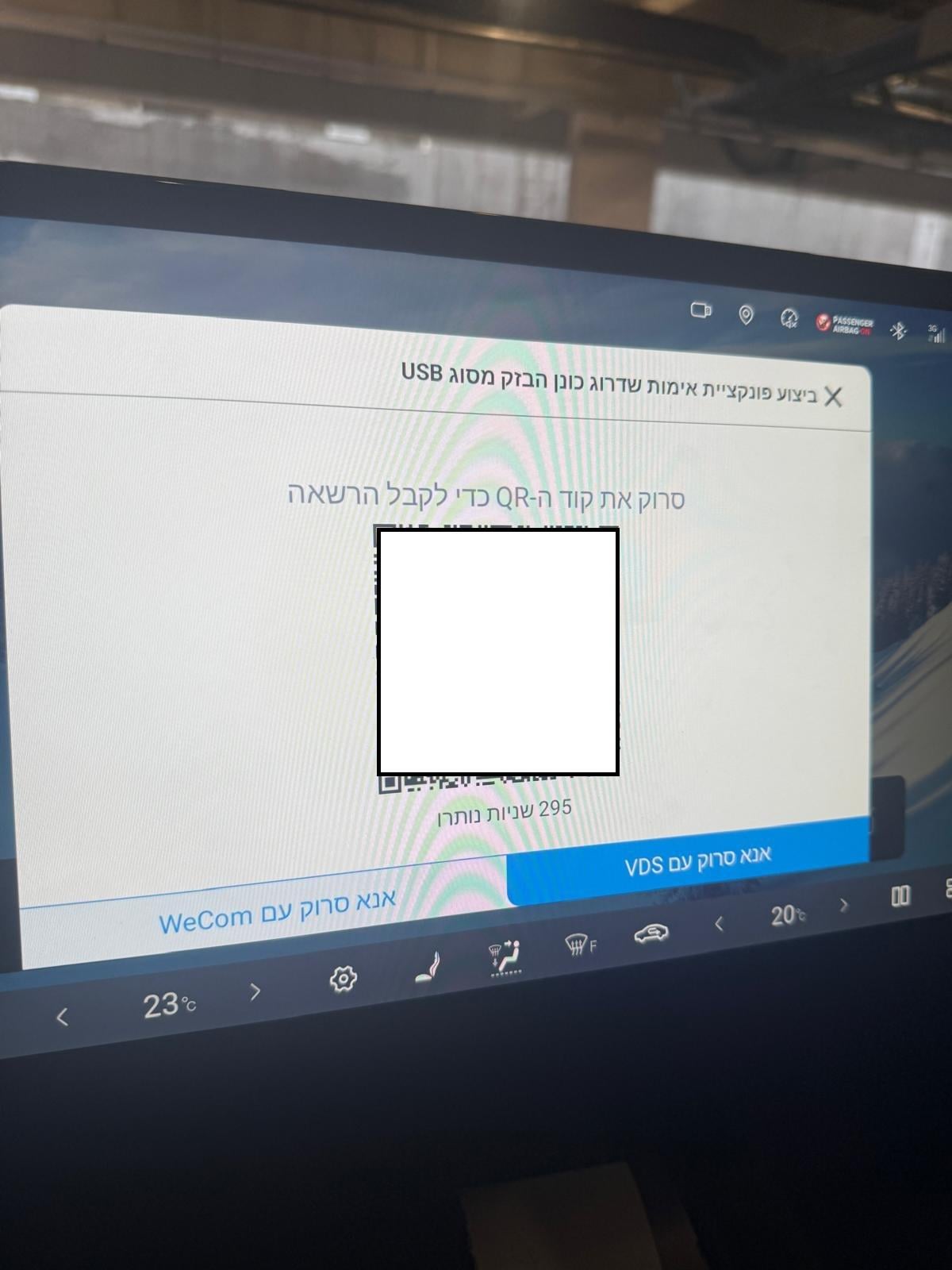
Thanks mate, I just tried and when I enter the code in the dialer it gives me a screen with QR code which I need to scan via WeCom / VDS.. do you have any idea what is the next step ? It is not mentioned in the video
zedder1994
2026-02-18 09:40
When I did it the secret menu appeared. The code generator gives a few codes, so maybe try another. Sometimes letters/numbers like 0 and O are easy to mix up.
Accurate_Ad_9082
2026-02-18 14:51
So I tried the manual but it looks like there is another layer of security that the manufacture has added in my version..
Has anyone encountered it ?
it pops up whenever I insert the Disk On Key with the downgrade firmware in it.
My current firmware is : 49.1.2.2507106.1
https://preview.redd.it/fuoiylvqn9kg1.jpeg?width=1200&format=pjpg&auto=webp&s=1abf23f82eeb16619722e3db8f21c55b36c2bd84
ParanoidAndroidMV
2026-02-18 15:00
In your case (latest version of media software), you'd have to downgrade usind wireless debug and hacking it before upgrading again. Or just wait for a fix from this qr code block.
Accurate_Ad_9082
2026-02-18 15:02
Do you have any instructions for that ?
(downgrade using wireless debug and hacking it before upgrading again)
Edit Update :
Will try this reboot method with diskonkey inserted and will update again
[https://www.reddit.com/r/BYD/comments/1fv7x6w/byd\_blocked\_downgrading/](https://www.reddit.com/r/BYD/comments/1fv7x6w/byd_blocked_downgrading/)
ParanoidAndroidMV
2026-02-18 15:15
Not really. Haven't done it on mine. But try this (at your own risk):
Installing applications via ADB (Android Debug Bridge) is the most reliable way to bypass the "Whitelist" restrictions found in the latest BYD software versions (like 2507). Since the multimedia system in your Seal is essentially an Android tablet, we can talk to it using a computer.
Here is a step-by-step guide to setting up and using ADB.
🛠️ Phase 1: Preparation
Before you start, you need the right tools on your computer.
* Download Platform Tools: Download the official SDK Platform-Tools for Windows.
* Extract: Unzip the folder to an easy-to-reach location, like C:\adb.
* Prepare your APK: Download the .apk file you want to install (e.g., G-Box, Waze, or Spotify) and move it into that same C:\adb folder. Rename it to something simple like app.apk.
🛡️ Phase 2: Enable Developer Mode on the Seal
Your car’s "brain" needs permission to talk to your computer.
* Go to Settings -> System Settings -> Software Details.
* Tap the Build Number (or Version version) 7 to 10 times rapidly until a message says "You are now a developer."
* Go back to the System menu and find Developer Options.
* Enable USB Debugging and Wireless Debugging.
🔌 Phase 3: Connecting via Wi-Fi
Since modern BYD ports are often restricted for data, Wireless ADB is the preferred method.
* Connect to the same Wi-Fi: Ensure your laptop and the car are on the same Wi-Fi network (or use your phone as a hotspot for both).
* In Wireless Debugging on the car screen, note the IP Address and Port (e.g., 192.168.1.15:5555).
* On your computer, open Command Prompt (CMD) and type:
cd C:\adb
* Connect to the car:
adb connect 192.168.1.15:5555 (Replace with your car's IP).
* Check the car screen: A popup will ask to "Allow USB Debugging?" Select Always allow and tap OK.
📥 Phase 4: Installing the App
Now that you are connected, it’s time to push the file.
* In the CMD window, type the following command:
adb install app.apk
* Wait for the console to say Success.
* The app icon should now appear in your car’s app drawer (you may need to scroll to the last page or restart the multimedia).
⚠️ Common ADB Commands for BYD
| Task | Command |
|---|---|
| Check connection | adb devices |
| Uninstall an app | adb uninstall com.package.name |
| Force Install (Upgrade) | adb install -r app.apk |
| Reboot Multimedia | adb reboot |
>
Pro-Tip for Version 2507:
If the adb install command returns an error like INSTALL_FAILED_USER_RESTRICTED, you may need to install a "Package Installer" bypass app first. Many users install an app called "BYD Installer" via ADB, which then allows you to install other apps directly from a USB stick like you originally intended.
tzmercurioxd
2026-02-18 18:37
Yo tengonun metodo
Ok-Bodybuilder7932
2026-03-06 23:20
Did you solve this????